REVIEW HOME SCREEN
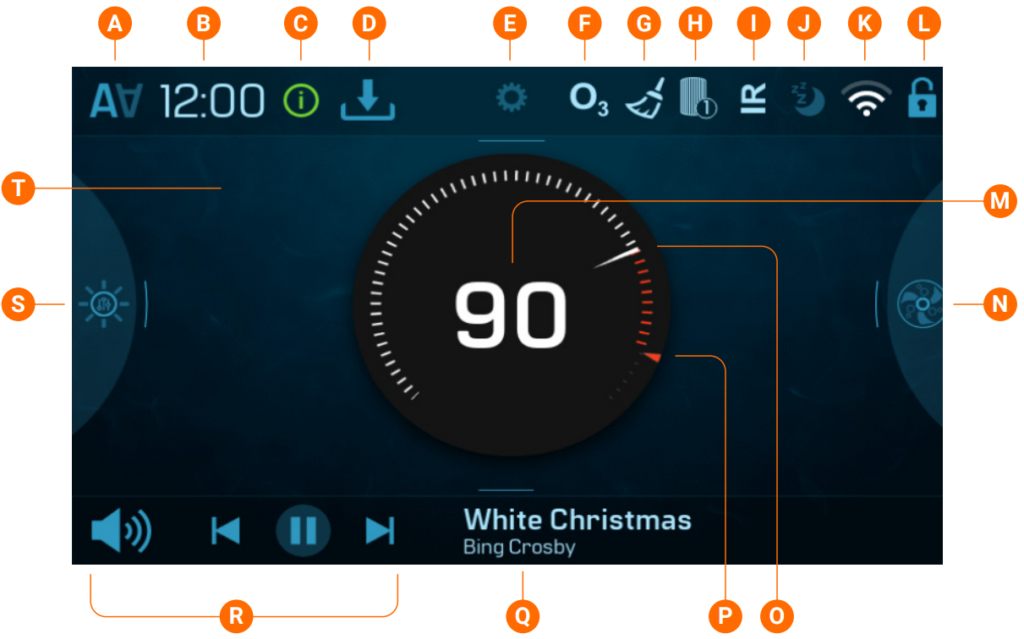
A – Invert display
B – Time
C – Message (may appear)
D – Download software update
E – Settings
F – Ozone is running
G – Cleanup cycle
H – Filter cycle 1 or 2
I – Heat mode
J – Sleep mode
K – Balboa Worldwide App or ControlMySpa connected (local or cloud connection)
L – Panel is locked and/or Settings is locked
M – Water temperature display and control button
N – Spa device controls
O – Water temperature indicator
P – Set temperature indicator
Q – Music song and artist
R – Music controls
S – Spa light controls
T – Home screen
REVIEW INTERFACE AND NAVIGATION
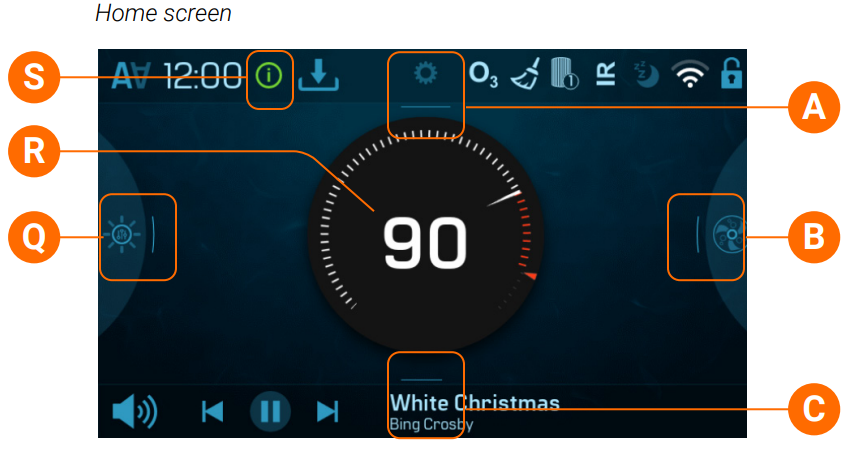
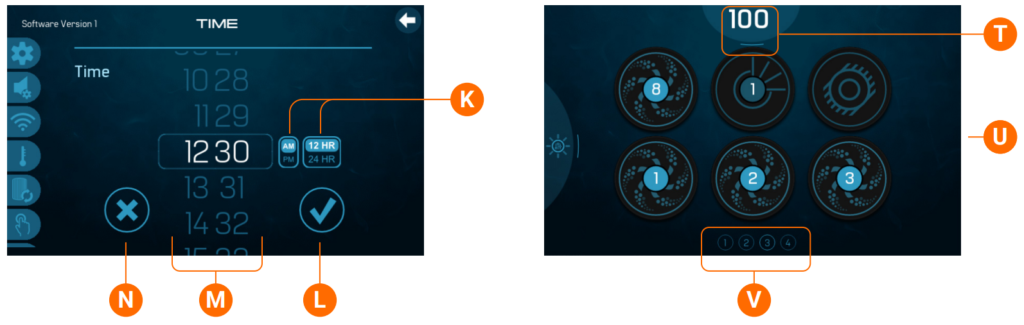
A – Swipe down here to view the Settings menu.
B – Swipe right here to view the spa devices screen.
C – Swipe up here to view the music controls (if available).
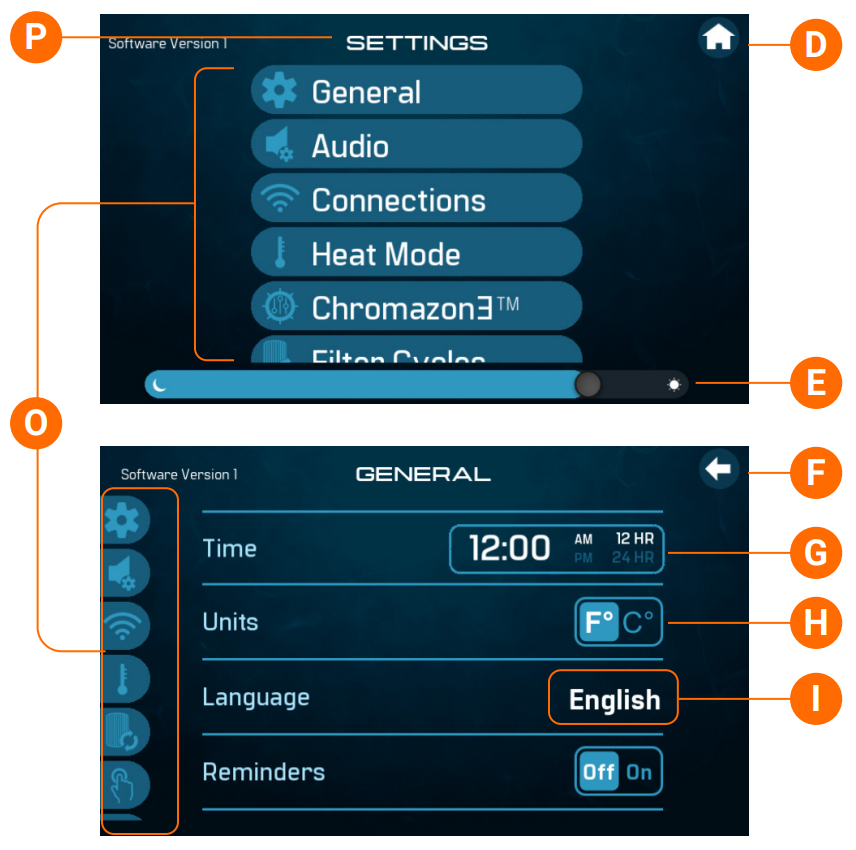
D – Navigate back to the Home screen.
E – Increase/decrease display brightness.
F – Navigate to previous screen.
G – Enter the Time screen.
H – Toggle button.
I – Enter the Language screen.
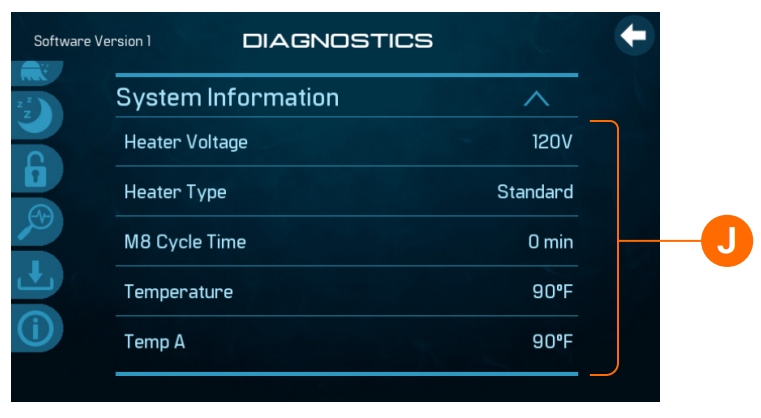
J – Swipe up/down to review the list.
K – Toggle buttons.
L – Save changed setting.
M – Swipe up/down to change the settings.
N – Cancel changed setting.
O – Swipe up/down to view the Setting menu.
P – Settings screen
Q – Swipe right here (if available) to view the Chromazone screen.
R – Change the Set Temperature.
S – View the message screen.
T – Swipe down to go back to the Home screen.
U – Spa screen.
V – These icons represent available Spa screens.
VIEW SETTINGS
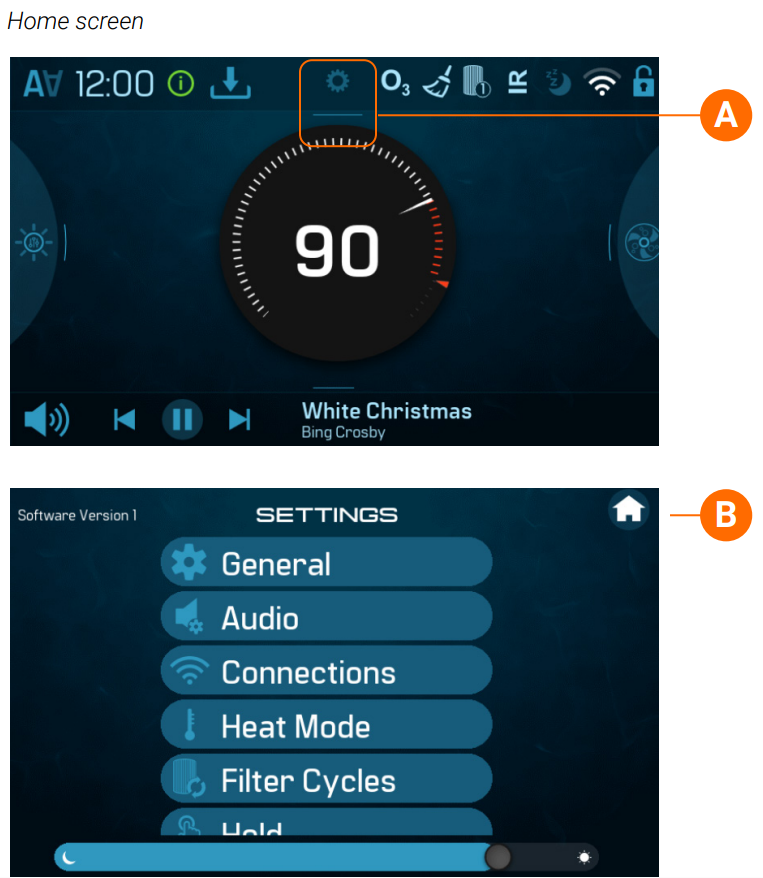
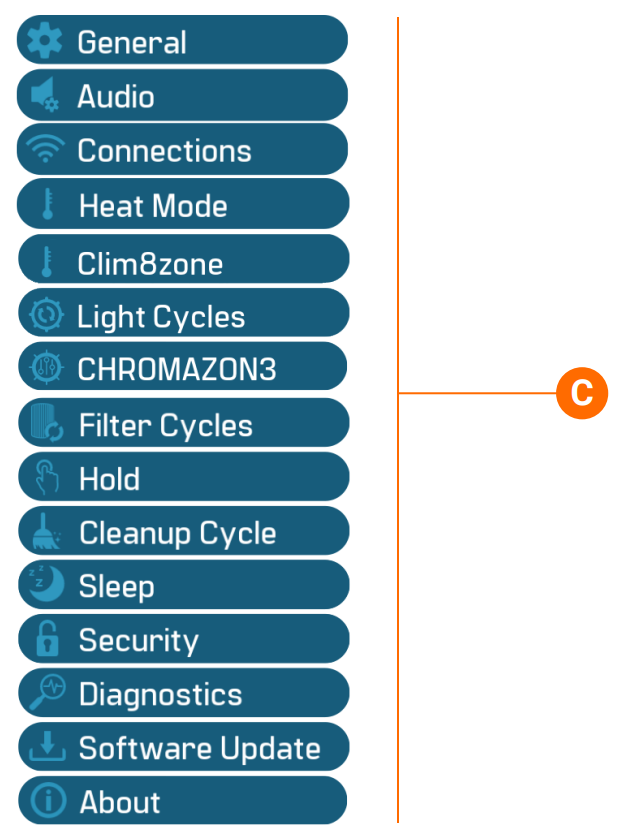
Swipe down here (A) to view the Settings screen (B). This is the Settings list (C).
SET THE TIME
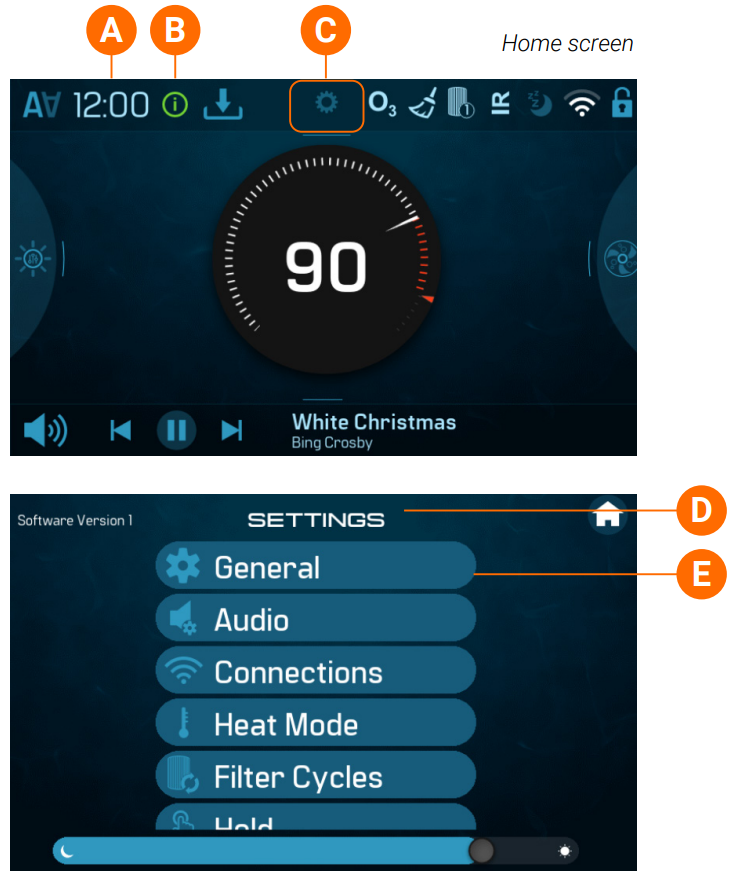
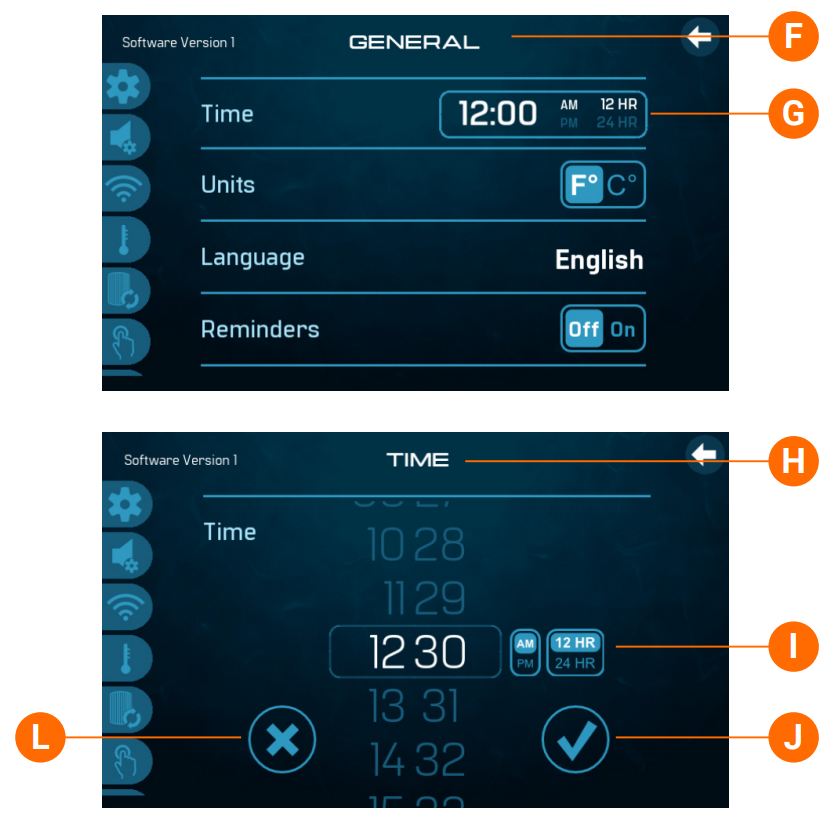
Follow these steps to set the time:
1 – Swipe down here (C) to go to Settings (D). Press General (E) to view the General screen (F).
2 – Press here (G) to view the Time screen (H).
3 – Set the time (I).
4 – Cancel your settings (L), or save your settings (J). The time appears here (A) on the Home screen.
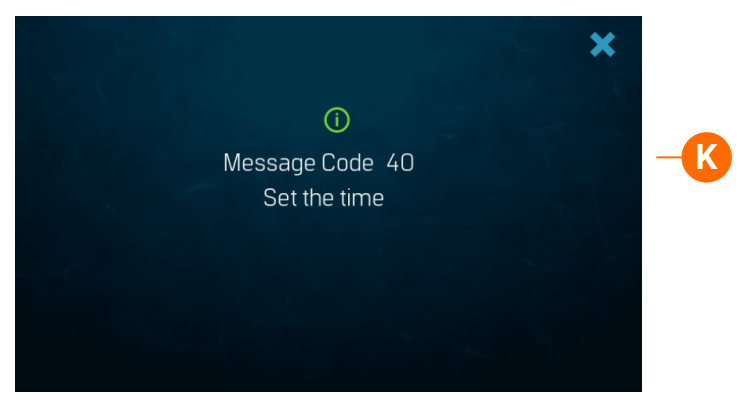
Setting the time can be important for determining water filtration times and other background features. If time has not been set, an information icon appears (B). Press it to view the message (K).
CHANGE/VIEW THE SET TEMPERATURE
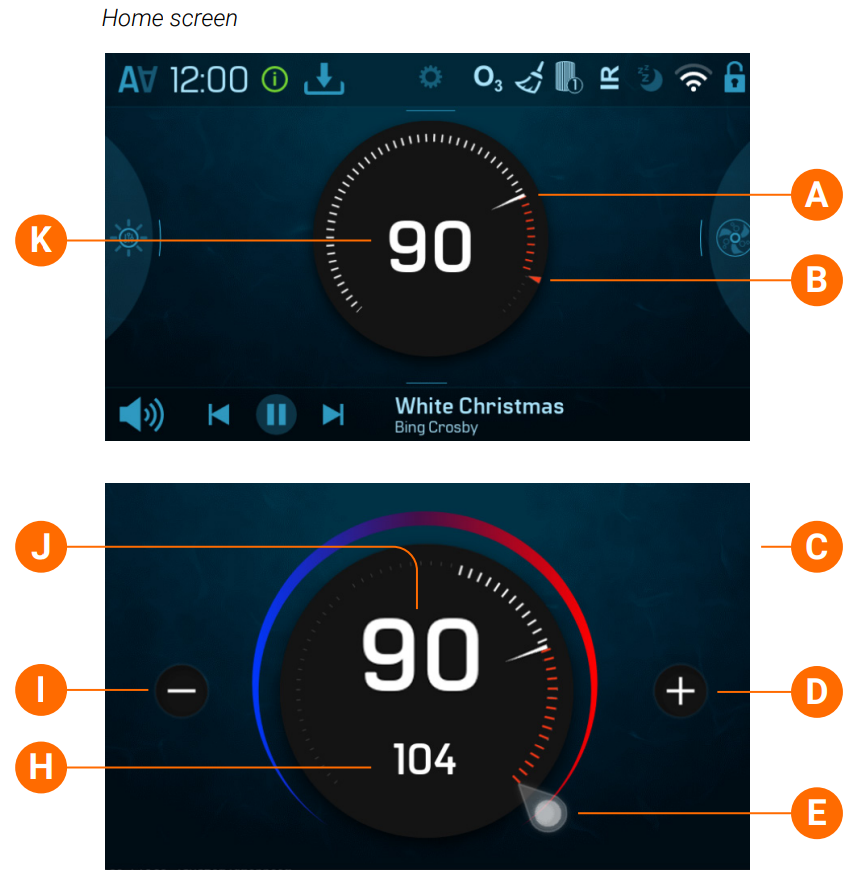
Follow these steps to change the Set Temperature:
1 – Press the water temperature display/button (K) to view the temperature screen (C). This is the water temperature (J), and this is the Set Temperature (H).
2 – There are two ways to change the Set Temperature. One, press the plus and minus buttons (I)(D). Two, slide the Set Temperature icon (E).
3 – Press the water temperature display/button (J) to go back to the Home screen.
This represents the water temperature (A), and this represents the Set Temperature (B) on the Home screen.
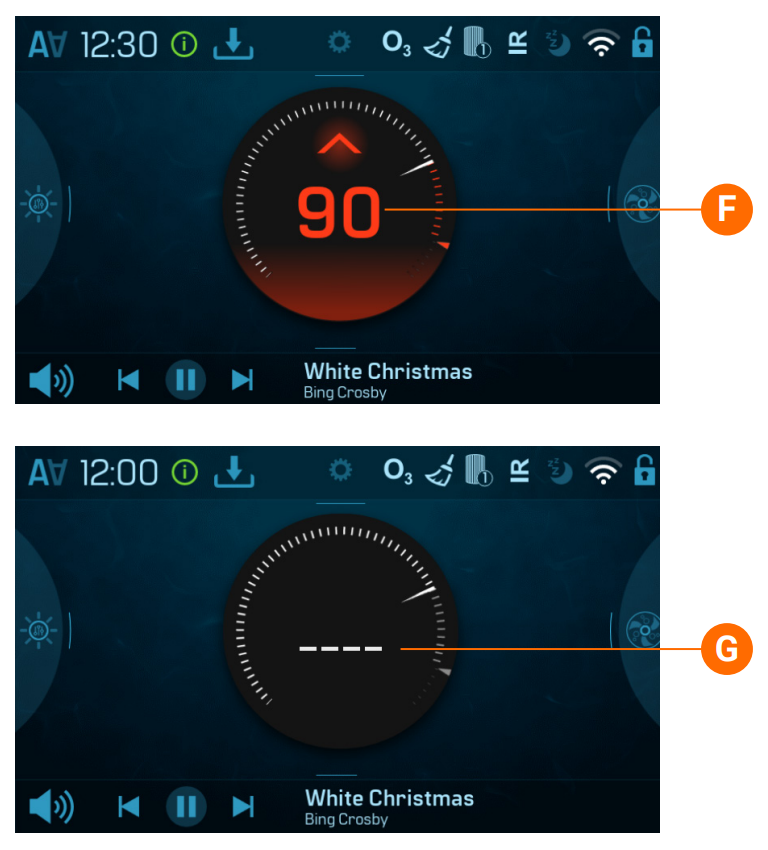
How do I know when the heater is On? The water temperature turns red (f).
What do the dashes mean (G)? They indicate that the spa control has not checked the water temperature for approximately one hour. A pump needs to cycle water through the heater for the control system to check the water temperature. After water cycles through the heater for 1 minute, the dashes are replaced with the current water temperature (K). Whenever the control system is powered On, dashes appear (G) for one minute while a pump cycles water through the heater to check the current water temperature.
RUN SPA DEVICES
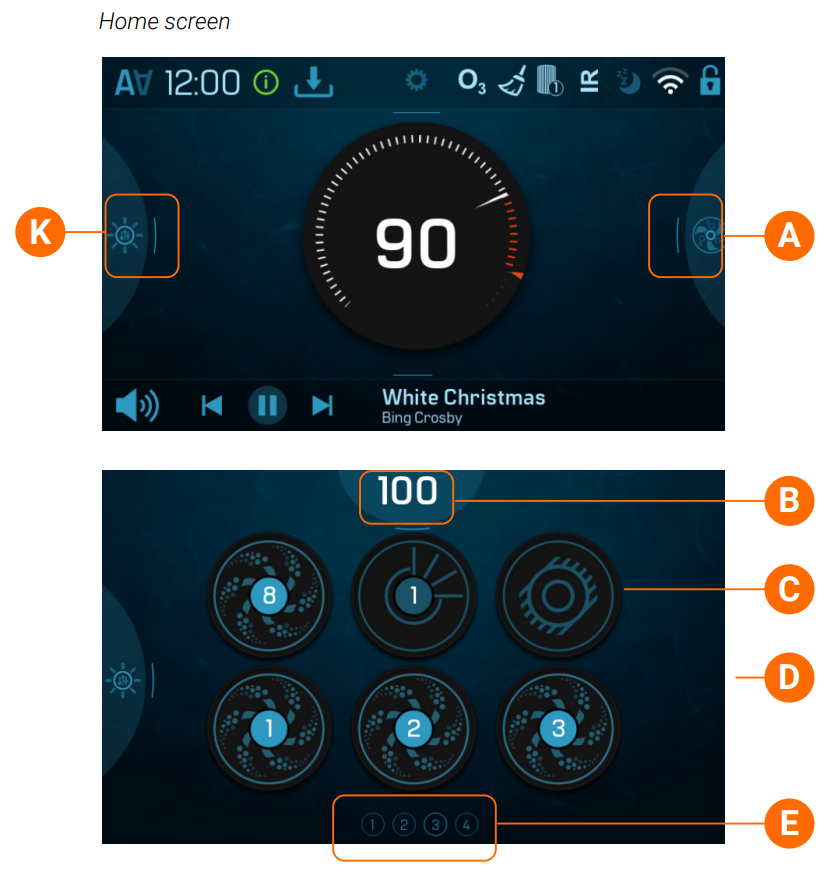
A spa device is a pump, blower, light, etc. Follow these steps to run spa devices:
1 – Swipe right here (A) to view the Spa screen (D).
2 – Run the spa devices.
3 – Turn on/off lights (K). If your spa is equipped with Chormazone™, swipe left here (K) to view the Chromazone™ screen.
The functionality of each spa device may vary. For example, some devices may have a single speed or state, while other spa devices may have multiple speeds or states. Your spa configuration will determine the number of spa devices and the functionality of each device.
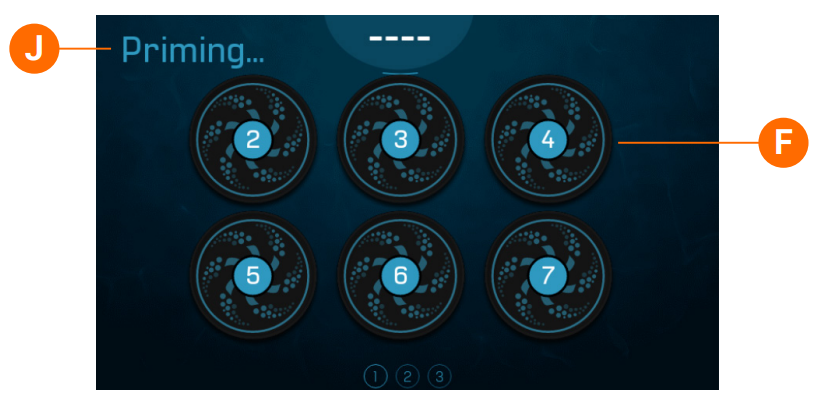
One Spa screen (D) can display a maximum of six devices. If your spa has more than six devices, indicators will appear (E).
If a circulation pump icon appears (C) in the Spa screen, the icon is not controllable. It shows equipment status only. However, the circulation pump can be controlled with a button (F) during Priming mode (J).
SET DISPLAY BRIGHTNESS
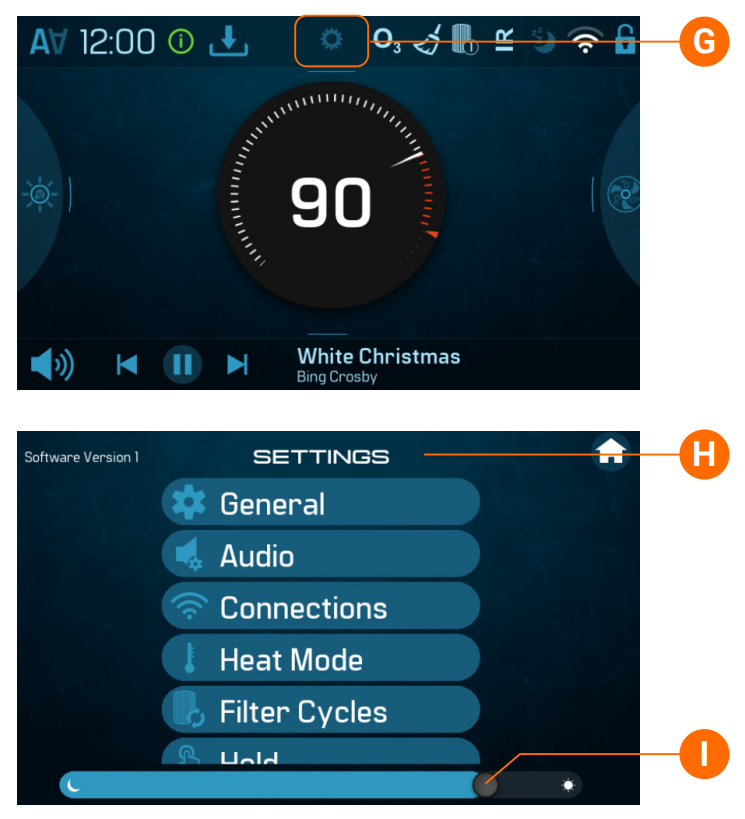
Follow these steps to change the display brightness:
1 – Swipe down here (G) to view the Settings screen (H).
2 – Slide the brightness controller (I).
SET FILTER CYCLE TIMES
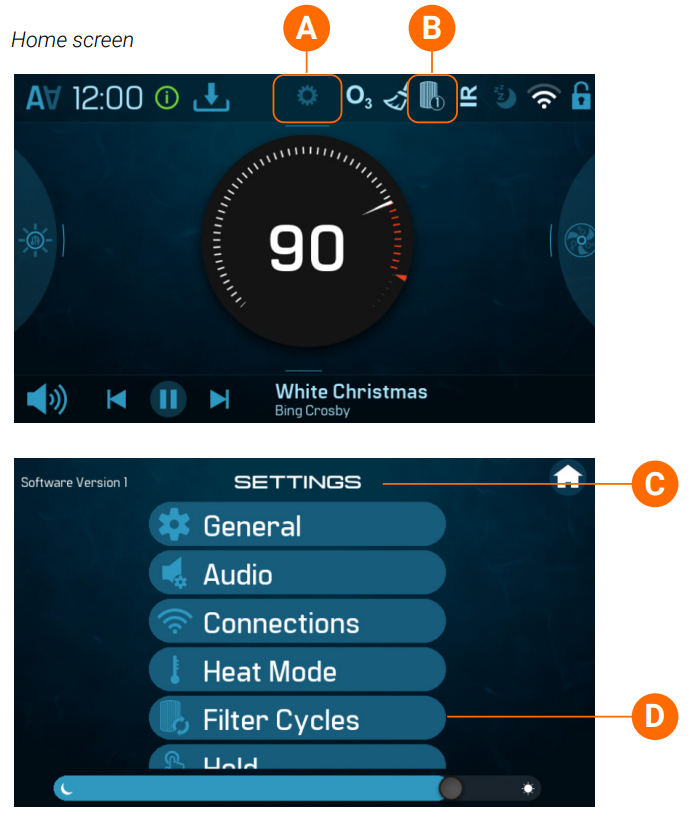
Keep your water clean and ready to enjoy!
Follow these steps to set the filter cycles:
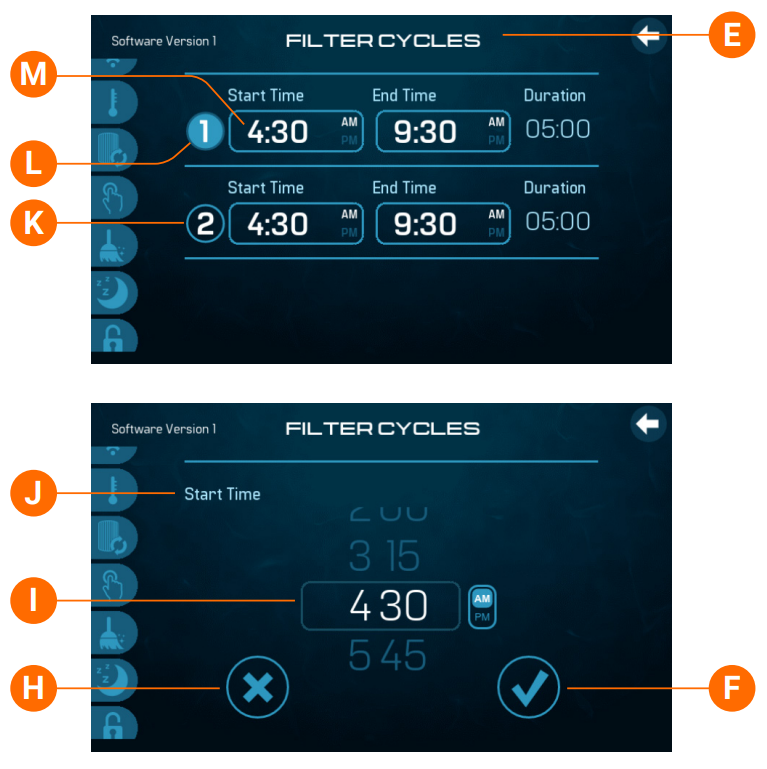
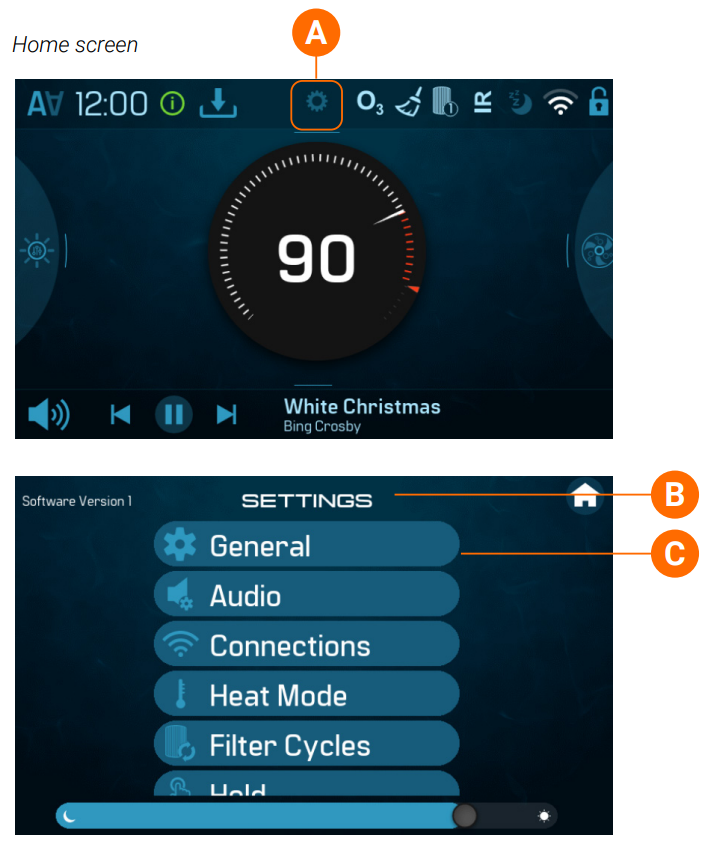
1 – Swipe down here (A) to go to Settings (C). Press Filter Cycles (D) to view the Filter Cycles screen (E).
2 – Press the Start Time button (M) to view the Start Time screen (J).
3 – Set the time (I).
4 – Cancel your settings (H), or save your settings (F).
5 – Follow the same process to change the other filter cycle time times.
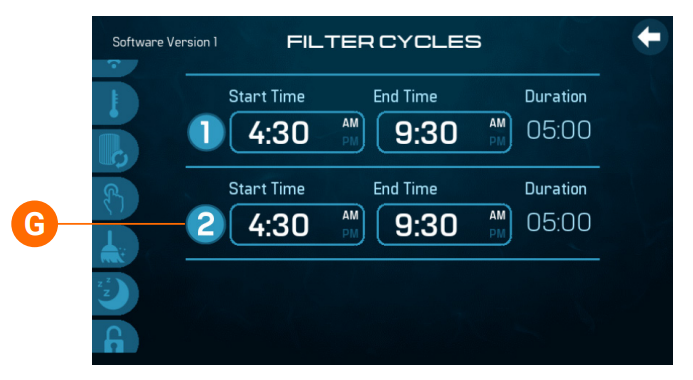
Filter cycle 2 is optional. It is disabled when the “2” button is dark blue (K). Press the “2” button and the color will change to light blue (G), which indicates that filter cycle 2 is enabled.
How can you tell when a filter cycle is running? This icon appears on the home screen (B). “1” appears in the lower corner of the icon (B) when Filter Cycle 1 is running. “2” appears in the lower corner of the icon (B) when Filter Cycle 2 is running.
SET GENERAL SETTINGS
Follow these steps to set the general settings:
1 – Swipe down here (A) to go to Settings (B).
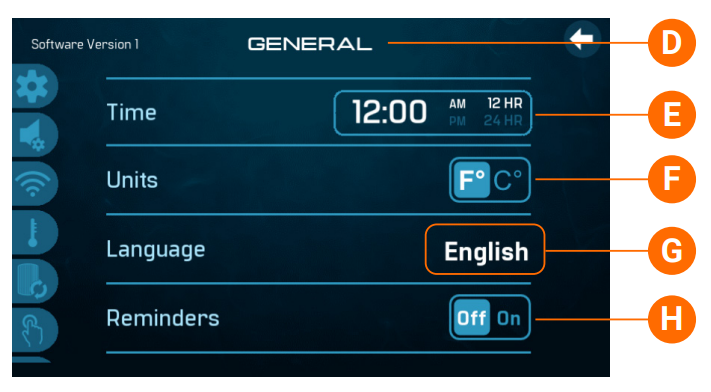
2 – Press General (C) to view the General screen (D).
3 – Set the time (view page 6).
4 – Choose Fahrenheit or Celsius (F).
5 – Press here (G) to choose a language.
6 – Turn on/off reminders (H).
CHANGE HEAT SETTINGS
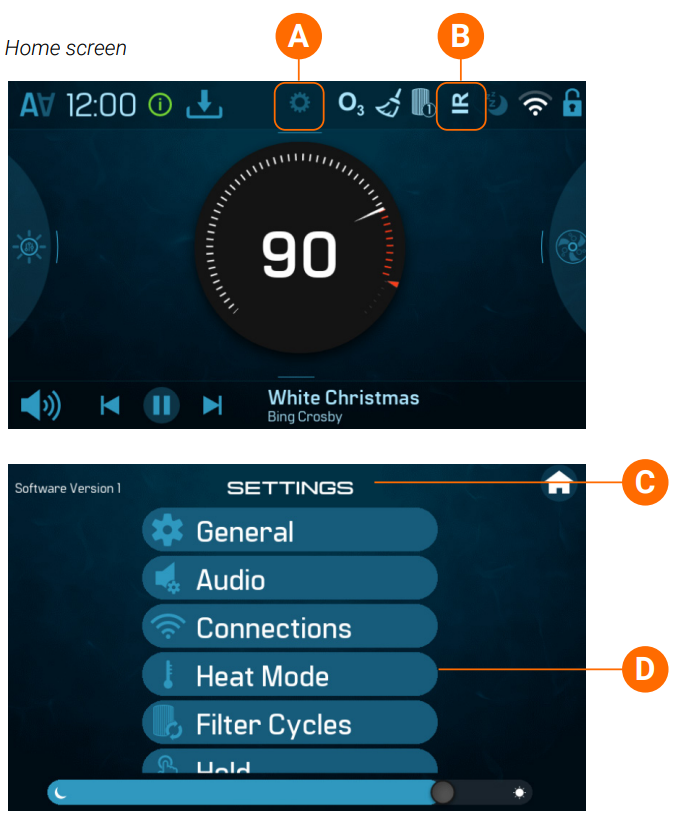
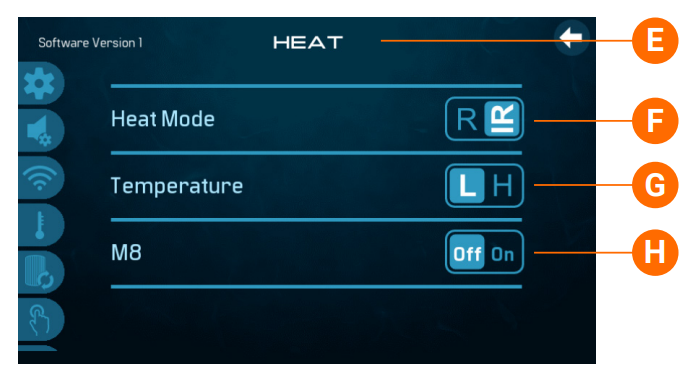
Keep your spa heated and ready to enjoy, or keep it cool and save energy. Heat settings help you do both.
Follow these steps to set the Heat settings:
1 – Swipe down here (A) to go to Settings (C).
2 – Press Heat Mode (D) to view the Heat screen (E).
3 – Set the Heat Mode (F).
4 – Set the Temperature Mode (G).
5 – Turn On/Off M8 (H).
HEAT MODE
There are two Heat modes: Ready and Rest (F). The current Heat mode is indicated here (B) on the Home screen. If your spa is in Ready mode, “R” appears on the Home screen. Ready mode keeps the water temperature close to the Set temperature 24 hours a day. If you use your spa consistently, select Ready mode. If your spa is in Rest mode, “ IR” appears on the Home screen. Rest mode only heats the water during filter cycles. If you do not use your spa consistently, select Rest mode.
TEMPERATURE
There are two temperature ranges: High and Low (G). High Range may limit the Set Temperature range to 80° – 104° F (26.5° – 40.0° C). Low Range may limit the Set Temperature range to 50° – 99° F (10.0° – 37.0° C).
M8
M8 (H) looks for opportunities to decrease device usage by evaluating water temperature readings. Stable water temperatures equal less device usage and less wear and tear.
CHANGE SLEEP SETTINGS
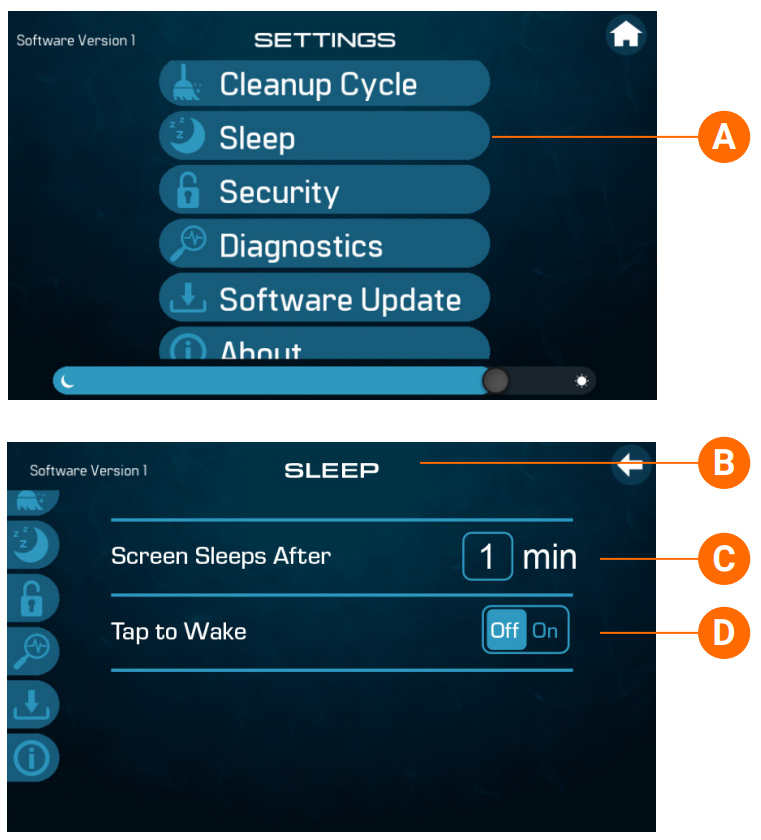
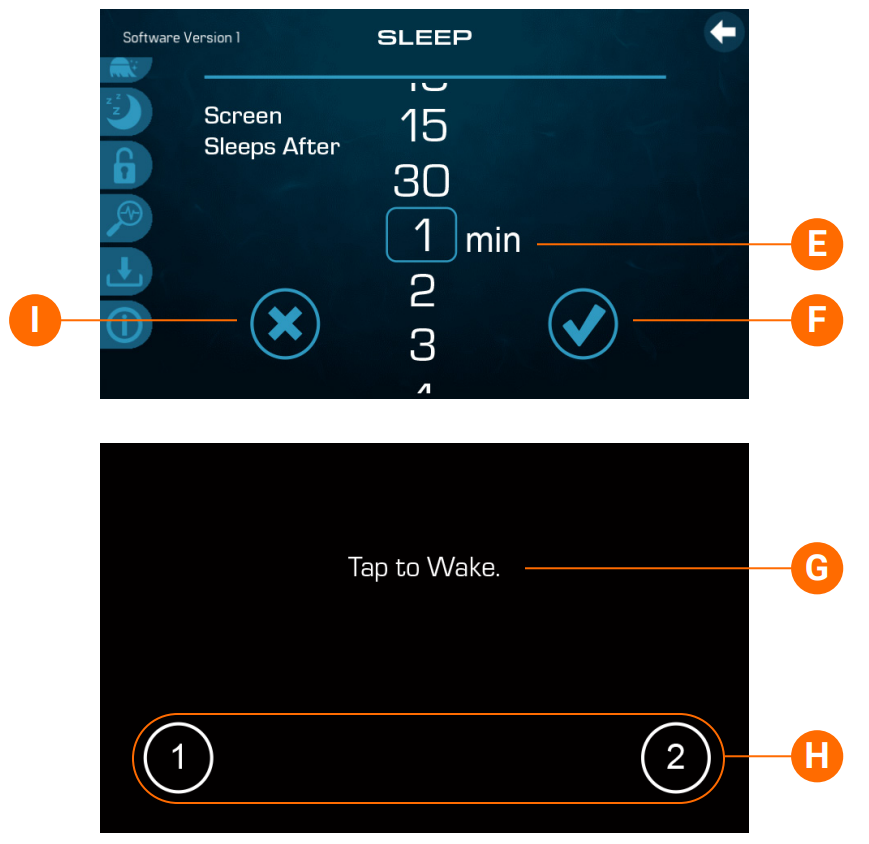
Follow these steps to set the general settings:
1 – Navigate to the Settings menu. (View section “View Settings”)
2 – Press Sleep (A) to view the Sleep screen (B).
3 – Press here (C) to view the next Sleep screen.
4 – Swipe here (E) to select a time. This is the amount of time it takes for the panel to go into sleep mode. Short times are recommended because it decreases the chance of water activating buttons.
5 – Cancel your setting (I), or save your setting (F).
If the panel is in sleep mode, press the screen and this message will appear (G). Press “1” then “2” to wake the panel.
WIFI CONNECTION
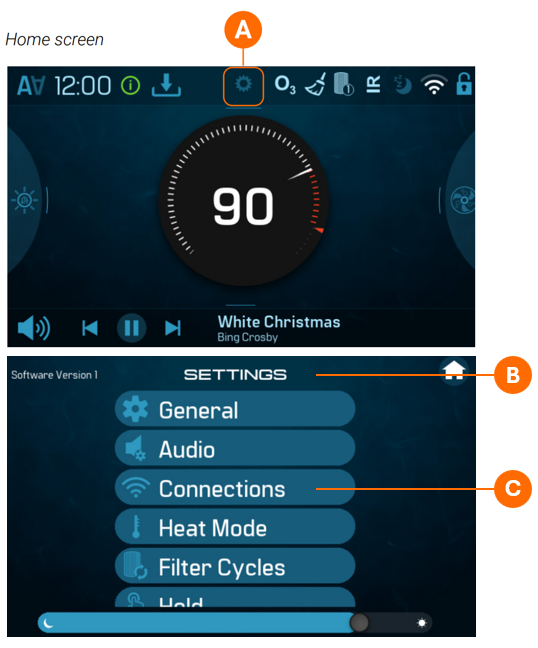
Follow these steps to set the wifi connection:
1 – Swipe down here (A) to go to Settings (B).
2 – Press Connections (C) to view the Connections screen.
3 – Select your wifi network and enter the wifi password.
CONNECT TO THE ControlMySpa App
1 – Press “ControlMySpa” button and verify the CMS code provided by your dealer (NPJ-96150)
2 – A QR Code will appear. Download the “ControlMySpa” App and scan this QR code using the app.